Overview
Welcome to the official documentation for Scriptmonkey, a minimalistic, ad-free Manifest V3 Chrome extension for managing user scripts.
Getting Started
Installation
- Install Scriptmonkey from the Chrome Web Store.
- After installing, navigate to
chrome://extensions, locate Scriptmonkey, and enable Allow User Scripts toggle.
User Interface Overview
Scriptmonkey provides two intuitive interfaces for controlling and authoring your user scripts:
Extension Popup
Click the Scriptmonkey icon in the browser toolbar to access quick actions and domain controls.
Main View
The main popup layout provides instant status and control for scripts matching the active website:
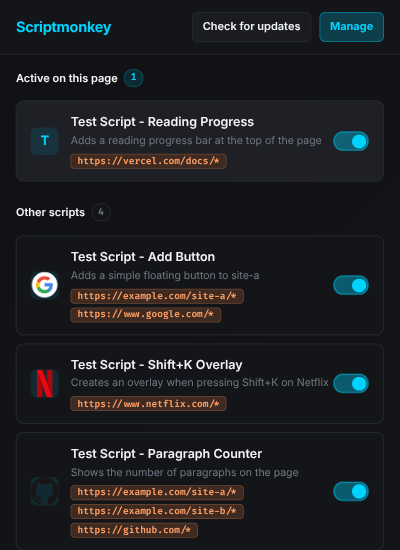
- Toolbar Badge: Shows the exact number of active user scripts matching the current web page.
- Active & Available Scripts: Easily view which scripts are executing on the current domain versus other installed scripts.
- Quick Controls: Toggle scripts on/off, trigger update checks, or delete scripts directly.
- Manage Dashboard Link: Click Manage to open the full management dashboard tab.
Quick Actions & Overlays
Additional script options and confirmation dialogs open in an overlay context within the popup:
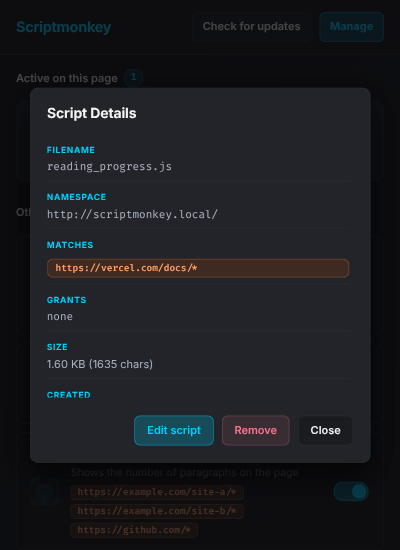
Dashboard Interface
The Dashboard is an editor interface for editing, organizing, and inspecting your scripts.
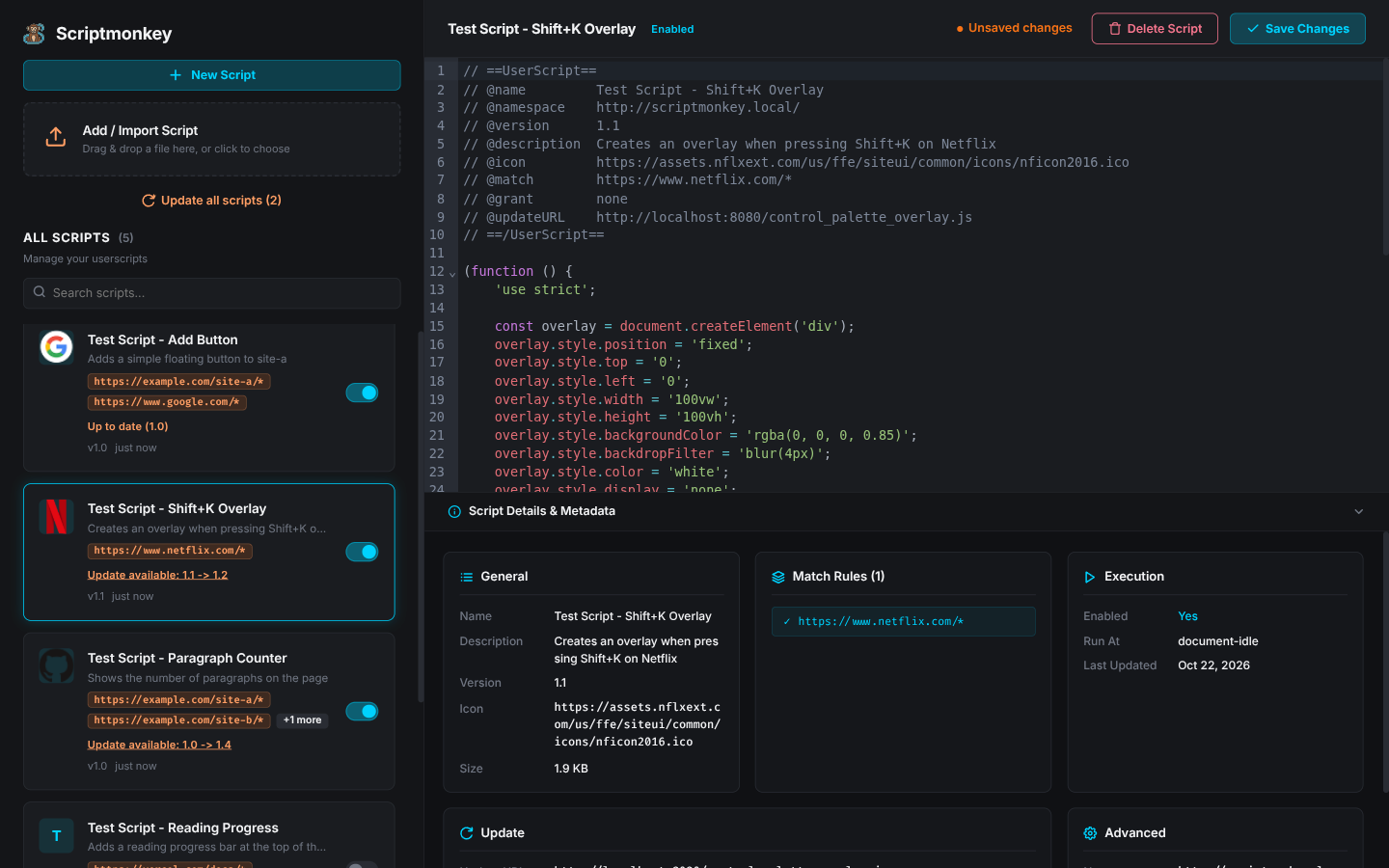
- CodeMirror 6 Editor: Includes syntax highlighting, automatic line numbers, matching brackets, and real-time JavaScript syntax validation.
- Save & Navigation Safety: Save your scripts quickly using
Ctrl+S. Scriptmonkey prompts for confirmation before navigating away with unsaved changes. - Collapsible Metadata Cards: Automatically parses script header metadata into clear categories (General, Match Rules, Execution, Updates, and Advanced properties).
- Searchable Sidebar: Quickly search and filter through your installed script library.
- Drag & Drop Import: Drag and drop
.jsor.user.jsfiles directly into the import drop zone or onto the editor.
Adding and Updating Scripts
Header Format
Scriptmonkey parses standard ==UserScript== block headers:
// ==UserScript==
// @name         Example Enhancement
// @namespace    http://example.com/
// @version      1.0.0
// @description  Adds dark mode styling to example.com
// @match        https://example.com/*
// @grant        none
// ==/UserScript==

(function () {
  'use strict';
  console.log('Scriptmonkey user script active!');
})();
Checking for Updates
If a script defines an @updateURL or @downloadURL, Scriptmonkey can fetch remote headers and check for version updates:
- Per-script status: Shows current vs. available version numbers.
- Manual Updates: Click Check for updates in the popup or dashboard to trigger version comparison.
- Batch Update: Update individual scripts or click Update all when updates are detected.